

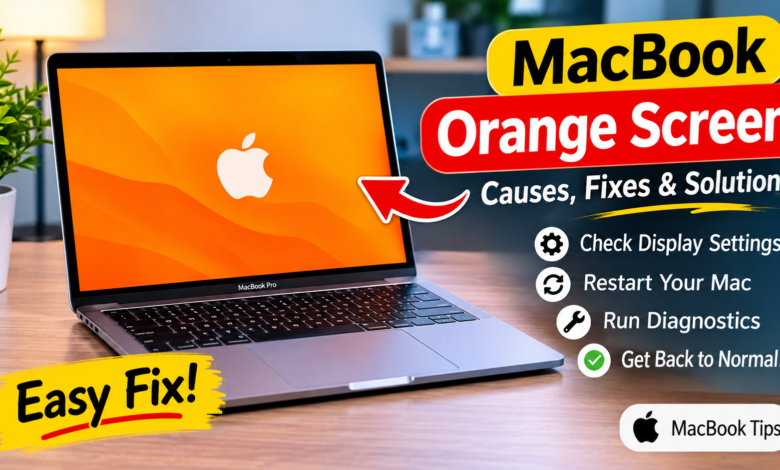
Introduction
MacBook computers are known for their impressive displays, reliable performance, and excellent user experience. However, like other electronic devices, they can sometimes develop unexpected display problems. One issue that can confuse users is an orange or yellowish screen that changes the appearance of everything displayed on the computer.
A macbook orange screen problem can occur suddenly or develop gradually. Sometimes, the issue is related to display settings, while in other situations, it may indicate a software conflict, damaged display component, or graphics-related problem. Understanding the possible causes is the first step toward finding the right solution.
This guide explains why the screen may turn orange, how to troubleshoot the issue, and when professional repair services may be necessary.
What Is a MacBook Orange Screen Problem?
An orange screen problem occurs when a MacBook display shows an unusual orange, yellow, or reddish color instead of its normal appearance. The color change may affect the entire display or appear in specific areas.
Some users notice that white backgrounds look yellow, while others experience a strong orange tint that makes reading and viewing images uncomfortable.
The macbook orange screen issue does not always indicate serious hardware damage. Certain macOS display features intentionally adjust screen colors depending on lighting conditions or scheduled settings.
However, if the color change remains after adjusting display preferences and restarting the computer, further investigation may be necessary.
Common Causes of an Orange MacBook Screen
Several factors can contribute to unusual display colors. Identifying the cause can help prevent unnecessary repairs.
1. Night Shift Settings
Night Shift is a macOS feature designed to reduce blue light exposure during evening hours. It makes display colors appear warmer, which can create a yellow or orange appearance.
If Night Shift is enabled, the screen may look noticeably different from its usual appearance.
How to check it:
- Open System Settings.
- Select Displays.
- Find the Night Shift option.
- Turn it off temporarily.
- Check whether the display returns to normal colors.
If disabling this feature fixes the issue, there may be no hardware problem.
2. True Tone Technology
Some MacBook models include True Tone technology, which automatically adjusts display colors according to surrounding lighting conditions.
Although this feature is designed to improve viewing comfort, certain lighting environments can make the display appear warmer.
To test whether True Tone is responsible, open System Settings, select Displays, and temporarily disable True Tone if your model supports it.
3. Incorrect Color Profiles
macOS uses color profiles to control how colors appear on the display. Selecting an unsuitable profile can cause unusual color reproduction.
A macbook orange screen appearance may sometimes result from an incorrect or incompatible color profile.
To investigate:
- Open System Settings.
- Navigate to Displays.
- Locate the Color Profile option.
- Select the recommended default profile when available.
- Compare the display appearance.
Avoid installing unfamiliar color profiles unless you understand their purpose.
4. Software Bugs and macOS Issues
Operating system bugs, outdated software, and conflicting applications can occasionally affect display behavior.
If the orange tint appeared after installing an update or a particular application, software compatibility could be involved.
Restarting the MacBook is a simple first step. You should also check for available macOS updates under System Settings and install appropriate updates after backing up important files.
5. Display or Hardware Damage
Physical damage is another possible explanation. A MacBook that has experienced a fall, pressure on the lid, or liquid exposure may develop display abnormalities.
Hardware-related symptoms can include uneven colors, flickering, vertical lines, dark patches, or changes that become more noticeable when moving the screen.
If these symptoms appear, professional inspection is recommended rather than attempting to open the display assembly yourself.
How to Fix a MacBook Orange Screen
If you are experiencing a macbook orange screen problem, try the following troubleshooting methods in order.
Step 1: Restart Your MacBook
Restarting the computer can resolve temporary software problems and refresh system processes.
Save your work, open the Apple menu, and select Restart. Once the computer starts again, check whether the display colors have returned to normal.
Step 2: Adjust Display Settings
Check Night Shift, True Tone, and the selected color profile. Temporarily disabling automatic color adjustments can help determine whether a display setting is responsible.
You can also adjust brightness to see whether the unusual color appearance changes.
Step 3: Disconnect External Devices
Connected monitors, adapters, docks, and other accessories can sometimes introduce display-related complications.
Disconnect unnecessary external devices and restart your computer. If you use an external monitor, compare its colors with the built-in MacBook display.
This comparison can help determine whether the problem affects the internal screen or a wider graphics output.
Step 4: Test in Safe Mode
Safe Mode can help identify whether startup software or other installed components are contributing to the problem.
The process differs depending on whether your MacBook uses Apple silicon or an Intel processor.
For Apple silicon:
- Shut down your Mac.
- Press and hold the power button until startup options appear.
- Select your startup disk.
- Hold Shift and choose Continue in Safe Mode.
For Intel-based MacBooks, restart the computer and immediately hold the Shift key until the login screen appears.
Check whether the display looks normal in Safe Mode. If it does, a startup application or software-related issue may be responsible.
Step 5: Run Apple Diagnostics
If the macbook orange screen problem continues, Apple Diagnostics may help identify certain hardware issues.
On Apple silicon models, shut down the computer, press and hold the power button until startup options appear, and then press Command-D.
On Intel models, turn on the MacBook and immediately hold the D key.
Follow the instructions displayed on the screen. If an error code appears, record it and share it with an Apple-authorized service provider.
When Should You Seek Professional Repair?
Not every display issue can be resolved through software settings. If the screen remains orange after basic troubleshooting, professional assistance may be necessary.
Consider contacting a qualified technician if:
- The display shows persistent orange or red patches.
- The screen flickers or develops unusual lines.
- The problem started after physical damage.
- The display changes when opening or closing the lid.
- Apple Diagnostics reports a hardware-related issue.
- The computer has experienced liquid exposure.
A technician can inspect the display assembly, internal connections, and other relevant components to identify the actual cause.
Avoid applying pressure to the display or using unofficial repair methods, as these actions may make existing damage worse.
How to Prevent Future Display Problems
Although some hardware failures cannot be prevented, good maintenance practices can reduce avoidable problems.
Keep macOS updated, avoid installing unreliable software, and protect your MacBook from drops and liquid exposure. Clean the screen using a suitable microfiber cloth and avoid applying cleaning liquids directly to the display.
You should also back up important files regularly using Time Machine or another reliable backup solution.
If you frequently work with photography, video editing, or graphic design, use an appropriate color profile to maintain consistent color accuracy.
Conclusion
An orange display can make everyday computer use frustrating, but the problem does not necessarily mean your MacBook needs an expensive repair. Night Shift, True Tone, incorrect color profiles, and temporary software issues are among the possible explanations.
Understanding the macbook orange screen issue allows users to follow a systematic troubleshooting process before considering professional assistance. Start with basic display settings, restart the computer, disconnect external accessories, and use diagnostic tools when appropriate.
If the problem continues or there are signs of physical damage, consult a qualified technician. Identifying the underlying cause is the best way to restore normal display performance and keep your MacBook working reliably.